Photo to perler beads
A photo-to-perler workflow turns a JPG, PNG, or WebP file into a pegboard grid with real fuse bead color codes. Pixel Bead Pattern does the resize, color matching, and materials list in your browser so you can iron with confidence.
When a photo works well (and when it does not)
High-contrast subjects—logos, cartoon art, pets with clear outlines—convert cleanly on a 29×29 or 58-bead-wide grid. Soft gradients, busy backgrounds, and low-light portraits need tighter settings: fewer colors, dithering, or background removal before you convert.
How photo to bead conversion works
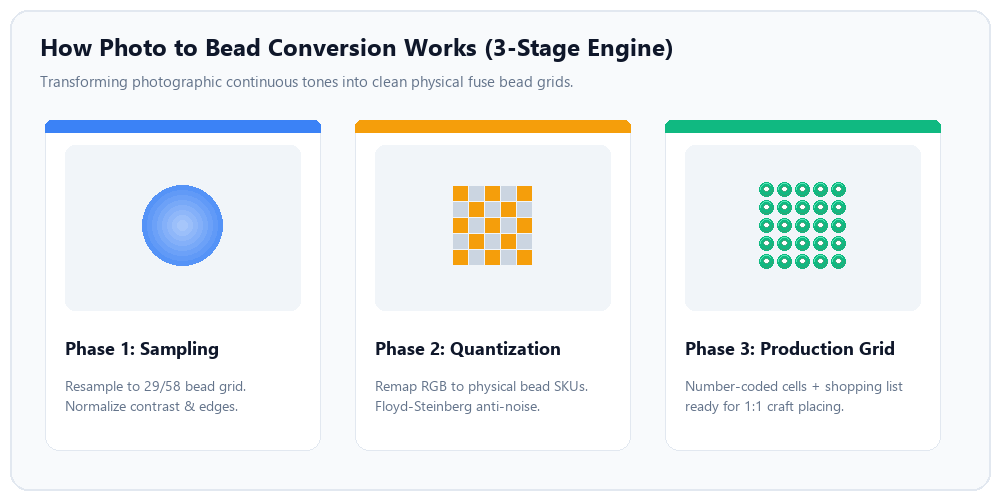
The 3-stage engine: from original continuous-tone pixels to curated brand palettes and numbered craft grids.
Step-by-step in the pattern maker
- Open the perler bead pattern maker and upload your image (JPG, PNG, or WebP).
- Set pattern width (beads). Height follows your photo aspect ratio and snaps to full pegboards (29 beads per board).
- Choose a brand palette—Perler, Hama, Artkal, or Mini—and set max colors.
- Optional: adjust brightness, contrast, saturation; enable dithering; or pick a background color with the eyedropper.
- Click Generate pattern, edit stray pixels, then export a watermarked preview or paid HD PDF.
Copyable “recipes” (settings that usually work)
These are starting points inside the maker—not prompts for an AI model. Tweak after you see the first preview.
Portrait (face)
- Width: 58 beads
- Max colors: 16
- Dithering: On
- Contrast: +10
- Remove light background: Off (use eyedropper if needed)

Simple logo
- Width: 29 beads
- Max colors: 8
- Dithering: Off
- Saturation: 0

Cartoon / flat art
- Width: 87 beads
- Max colors: 24
- Dithering: On
- Brightness: +5
Choosing the right pegboard resolution
Grid width directly impacts resolution, build time, and bead counts. Compare 1 pegboard (29×29) with 4 pegboards (58×58):
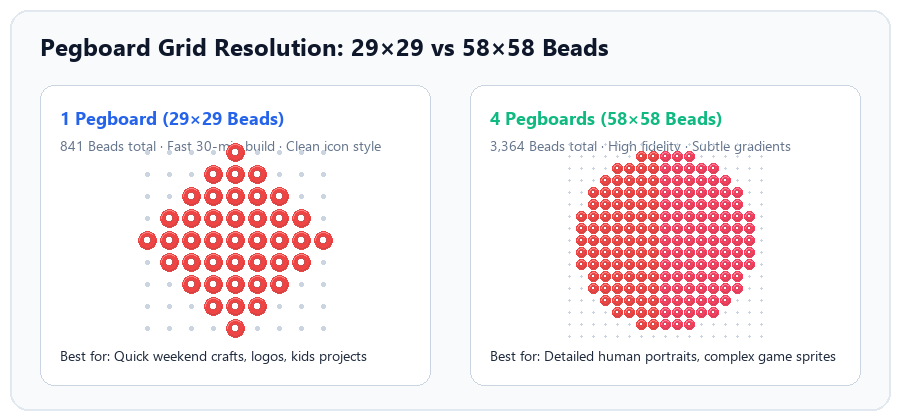
Resolution tradeoff: single 29×29 pegboard suits simple icons and fast crafts, while 58×58 enables lifelike portraits with subtle color transitions.
Photo conversion vs other methods
| Method | Best for | Downside |
|---|---|---|
| Pixel Bead Pattern maker | Fast grid, brand codes, PDF + bead counts | Large paid exports; subscription for cloud save |
| Graph paper by hand | Tiny icons, full control | Slow; easy to miscount colors |
| Generic pixel art apps | Screen art | Often no Perler/Hama SKU mapping |
Pros and cons of photo-based fuse bead art
- Pros: Personal gifts, fan art, brand logos, quick BOM for shopping.
- Cons: Very fine detail needs large multi-board builds; bead colors are discrete, not continuous like ink.
Troubleshooting quick fixes
- Face looks blocky: increase width to 58+ and enable dithering.
- Background halo: raise eyedropper tolerance or manually erase edge cells before the next generate, or erase edge cells after conversion.
- Wrong brand in store: switch palette to Hama or Artkal and re-check the shopping list—no re-upload required.
Field notes from real builds
These notes come from an indoor portrait test on Pixel Bead Pattern—not a sponsored shoot. Source: a phone JPG, soft window light, gray wall background, subject centered. Goal: a two-pegboard-wide gift piece without buying colors we would not use again.
First pass at 29 beads (too small)
At 29 beads wide, the face read as a smear of tan pixels. Eyes merged into one dark blob, and the hairline fought the wall. Max colors at 12 did not help; the grid simply did not have enough cells. Lesson: for a human face, 29-wide is fine for a cartoon selfie, not for a recognizable adult portrait.
58-bead width with a 16-color cap
Re-uploading the same file at 58 beads wide changed the build immediately. Settings: Perler palette, max colors 16, dithering on, contrast +8, saturation −5. Dithering pulled shadow under the chin into visible steps instead of a flat brown slab.
The auto-mapper liked tan, sand, and light brown for skin, with a single rust bead on the lips and black for pupils. Cheeks picked up one stray red that looked harsh at arm's length—we replaced it with the sand tone in the cell editor in under two minutes. That manual swap is normal; treat the first generate as a draft.
Background and bead count
The gray wall matched almost no peg color. Eyedropper on the preview with tolerance 28 cleared most of the halo; three edge cells still needed a flood-fill to white (empty peg holes in the export). Final grid: 58×72 beads, two boards tall on midi pegboards—roughly 4,100 beads before edits, closer to 3,950 after we deleted background noise.
We tried max colors 24 on the same width. Detail increased, but single-bead speckles appeared in the hair. For this subject, 16 colors was the sweet spot between likeness and build time (~5 hours on one pegboard, spaced over two evenings).
Export and shopping
The HD PDF split cleanly on 29×29 board pages; board numbers matched physical layout left-to-right. The shopping list missed one light grey we used in the editor (mapper had merged it into sand). We added a spare bag—worth keeping a neutral grey on hand for any photo project.
If you repeat this test, start with the portrait recipe above, preview free, then only pay for export once the face reads at arm's length. Pair the finished piece with our ironing guide if this is your first multi-board fuse.
Pricing for HD export on this site
Watermarked preview stays free. Paid HD PDF export, email delivery, and optional Pro cloud saves are described on the pricing page. We do not sell physical beads.
Further reading
Official ironing and safety tips live on Perler.com. Compare bead brands in our Perler vs Hama vs Artkal guide, or browse free pattern gallery starters if you prefer not to start from a photo.
Pegboard size (29×29 on standard midi boards) is industry-standard for Perler and Hama midi beads; exact SKU counts in our palettes are approximate and should be checked against your physical beads.